Solve reCAPTCHA in Puppeteer: Full Node.js Script
Solve reCAPTCHA in Puppeteer with one Node.js script: read the sitekey, get a token, inject it, fire the callback. Covers invisible, v3 and Enterprise.
To solve reCAPTCHA in Puppeteer, read the widget's sitekey and callback from the page, request a token for that sitekey and URL from a solving API, write the token into the hidden g-recaptcha-response field, and call the widget's callback. Most guides do the first three steps and skip the last one. That works on Google's demo form and fails on any page that waits for the callback. This guide gives a complete Node.js script for Puppeteer 25, then covers invisible v2, v3 and Enterprise, and when puppeteer-extra-plugin-recaptcha is still the right tool. The short version is on our Puppeteer integration page.
Two ways to solve reCAPTCHA in Puppeteer
You can either install a plugin that finds and fills every reCAPTCHA on the page, or call a solving API yourself and inject the token. The plugin is less code. The direct call gives you control over each step and has no extra dependencies.
The plugin most tutorials use is puppeteer-extra-plugin-recaptcha. It is still widely installed: npm counted 41,460 downloads in the week of 12 to 18 October 2026. But its latest release on npm, 3.6.8, was published on 1 March 2023. Puppeteer itself was at 25.16.0 on 22 October 2026, and that release requires Node.js 22.12 or newer and ships as an ES module. Before you depend on the plugin, check that it works with the Puppeteer version you run.
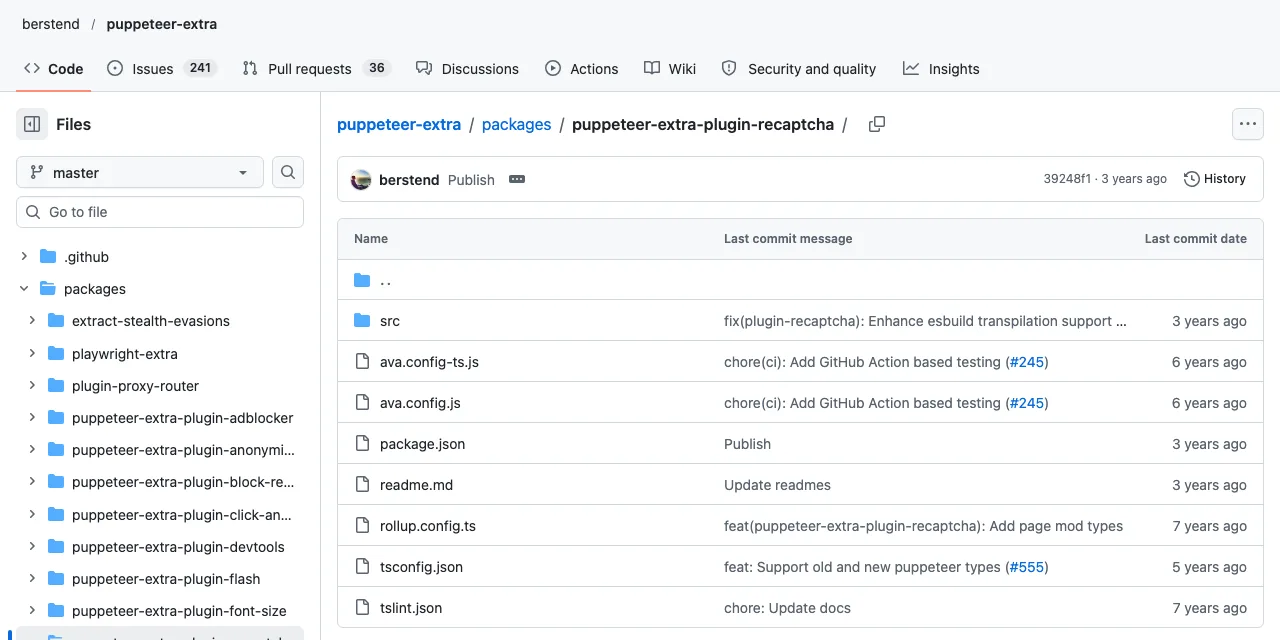
The plugin's folder in the puppeteer-extra repository, captured 23 October 2026.
| Question | Plugin (page.solveRecaptchas) | Direct API call |
|---|---|---|
| Code to write | A few lines | About 60 lines, shown below |
| Captchas inside iframes | Main frame only by default; you loop over child frames | You choose the frame |
| Invisible and v3 widgets | Skipped by default (solveInactiveChallenges and solveScoreBased are off) | You set the type explicitly |
| Callback | Triggered for you | You call it (Step 3) |
| Built-in provider | One provider, or your own provider function | Any HTTPS API |
If the plugin works on your target today, keep it. If it does not, or you need to know why a token was rejected, the direct approach below shows each step.
Step 1: Read the sitekey, callback and variant
Read three things from the page: the sitekey, the callback name, and which variant you face (checkbox, invisible or Enterprise). Looking only for the sitekey is the most common mistake in Puppeteer reCAPTCHA scripts.
A checkbox widget usually sits in a div.g-recaptcha with data-sitekey and often data-callback. On Google's own demo page that callback is onSuccess (observed 23 October 2026). If the page renders the widget from JavaScript, there is no such div. In that case the sitekey is still in the k parameter of the widget's anchor iframe, and the iframe's path shows whether it is an Enterprise widget.
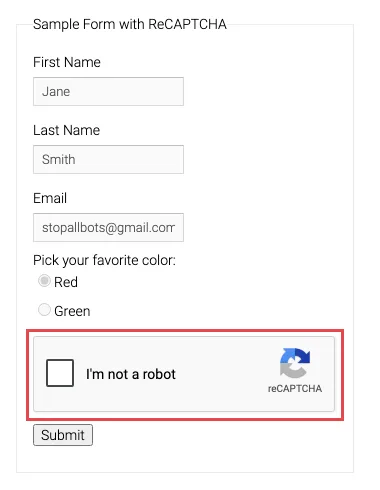
Google's public reCAPTCHA v2 demo form; the outlined element carries the sitekey and callback.
async function readRecaptcha(page) {
  const fromDom = await page.evaluate(() => {
    const el = document.querySelector('.g-recaptcha[data-sitekey], [data-sitekey]');
    return el ? { sitekey: el.dataset.sitekey, callback: el.dataset.callback || null,
                  invisible: el.dataset.size === 'invisible' } : null;
  });
  const frame = page.frames().find((f) => /\/recaptcha\/(api2|enterprise)\/anchor/.test(f.url()));
  const frameKey = frame ? new URL(frame.url()).searchParams.get('k') : null;
  return {
    sitekey: fromDom?.sitekey ?? frameKey,
    callback: fromDom?.callback ?? null,
    invisible: fromDom?.invisible ?? false,
    enterprise: frame ? frame.url().includes('/enterprise/') : false,
  };
}
Use page.frames() instead of page.$ for anything inside the widget. The checkbox lives in a cross-origin iframe, and selectors run against the main document never find it.
Step 2: Request a token from the solving API
Send the sitekey, the page URL and the variant to the API, and wait for the token. With CaptchaNo, POST /v1/solve?wait=60 blocks until the token is ready and returns it in the same response, so you don't need a polling loop.
const CAPTCHANO_KEY = process.env.CAPTCHANO_KEY;
const PROXY = process.env.PROXY; // the proxy the browser uses, if any

async function solveRecaptcha(info, url) {
  const res = await fetch('https://api.captchano.com/v1/solve?wait=60', {
    method: 'POST',
    headers: { Authorization: `Bearer ${CAPTCHANO_KEY}`, 'Content-Type': 'application/json' },
    body: JSON.stringify({
      type: info.enterprise ? 'recaptcha_enterprise' : 'recaptcha_v2',
      url,
      sitekey: info.sitekey,
      ...(info.invisible && { invisible: true }),
      ...(PROXY && { proxy: PROXY }),
    }),
  });
  const data = await res.json();
  if (data.status !== 'ready') throw new Error(JSON.stringify(data.error ?? data));
  return data.solution.token;
}
Keep the key in an environment variable, not in the script. Pass the browser's proxy when the site checks that the token and the submit come from the same IP. Request fields, error codes and the full response shape are in the captcha solver API reference.
Step 3: Inject the token and fire the callback
Write the token into every g-recaptcha-response textarea, then call the callback with the token. A form that posts normally only needs the field. A page that enables its submit button or sends an XHR inside the callback does nothing until the callback runs.
If the widget declared data-callback, call that global function. If the page rendered the widget with grecaptcha.render, the callback is stored in the library's internal ___grecaptcha_cfg.clients object. On the demo page that object's property names were minified (the callback sat at clients[0].J.J.callback on 23 October 2026). Those names can change between releases, so search for the callback key instead of hardcoding a path:
async function injectToken(page, token, callbackName) {
  await page.evaluate((token, callbackName) => {
    document.querySelectorAll('textarea[name="g-recaptcha-response"]')
      .forEach((el) => { el.value = token; });

    if (callbackName && typeof window[callbackName] === 'function') {
      window[callbackName](token);
      return;
    }
    // Widget rendered with grecaptcha.render: find the stored callback.
    const seen = new Set();
    const walk = (obj, depth) => {
      if (!obj || typeof obj !== 'object' || depth > 6 || seen.has(obj)) return null;
      seen.add(obj);
      for (const [key, value] of Object.entries(obj)) {
        if (key === 'callback') return value;
        if (value instanceof Node) continue;
        const found = walk(value, depth + 1);
        if (found) return found;
      }
      return null;
    };
    for (const client of Object.values(window.___grecaptcha_cfg?.clients ?? {})) {
      const cb = walk(client, 0);
      if (typeof cb === 'function') return cb(token);
      if (typeof cb === 'string' && typeof window[cb] === 'function') return window[cb](token);
    }
  }, token, callbackName);
}
Pass the token as an argument to page.evaluate, as above. Building a JavaScript string with the token inside it breaks as soon as the token contains a quote.
Step 4: The full Puppeteer script
Fill the form first and solve last. Google's verification docs say a reCAPTCHA token is valid for two minutes and can be verified only once, so request it just before you submit.
import puppeteer from 'puppeteer';

const TARGET = 'https://example.com/contact';

const browser = await puppeteer.launch();
const page = await browser.newPage();
await page.goto(TARGET, { waitUntil: 'networkidle2' });

// ... fill in the form fields here ...

const info = await readRecaptcha(page);
if (!info.sitekey) throw new Error('No reCAPTCHA found on the page');

const token = await solveRecaptcha(info, page.url());
await injectToken(page, token, info.callback);

await Promise.all([
  page.waitForNavigation({ waitUntil: 'networkidle2' }).catch(() => null),
  page.click('button[type="submit"], input[type="submit"]'),
]);
console.log('Landed on', page.url());
await browser.close();
Save it as solve.mjs with the three functions above, then run CAPTCHANO_KEY=... node solve.mjs. Judge success by what the site shows (a redirect, a confirmation message, a new cookie), not by the fact that the click went through. If the callback already submits the form, drop the click.
Invisible reCAPTCHA in Puppeteer
Invisible v2 shows no checkbox. The page calls grecaptcha.execute(), or binds the challenge to a button, and receives the token in its callback. Detect it from data-size="invisible", send invisible: true with the solve, and call the callback yourself rather than clicking the bound button, which would start the page's own challenge flow instead of using your token.
Google's classic reCAPTCHA guides now carry a deprecation banner that points to its Cloud documentation (captured 23 October 2026).
The guide still describes how existing invisible widgets behave. Some sites load the Enterprise script instead, which is one more reason to check the anchor iframe URL in Step 1 rather than assume the variant.
reCAPTCHA v3 in Puppeteer
v3 has no widget and no callback. The page calls grecaptcha.execute(sitekey, { action }) and sends the token in its own request. Find the action name in the page's script (search for execute(), then request a recaptcha_v3 token with that action and the minimum score you need.
The token then has to go into the request the page makes, not into a form field. You can either drive that request yourself with the token, or intercept it with page.setRequestInterception(true) and replace the token in the body. The site checks the action and grades the score against its own threshold, as explained in our breakdown of what a reCAPTCHA v3 score means. Request fields for scored tokens are on the reCAPTCHA v3 solver page.
reCAPTCHA Enterprise widgets
An Enterprise widget loads enterprise.js, and its anchor iframe path contains /recaptcha/enterprise/. The readRecaptcha function above detects that and sends recaptcha_enterprise instead of recaptcha_v2. The rest of the flow is the same.
One limit: CaptchaNo solves Enterprise checkbox-style widgets. Score-based Enterprise keys are not supported, and we would rather you know that before you build on it. If you are unsure which kind a site uses, our reCAPTCHA Enterprise explainer shows how to tell them apart.
Why the token is still rejected
If the site rejects a token from a successful solve, the cause is almost always timing, the callback, the variant or the IP.
| Symptom | Likely cause | Fix |
|---|---|---|
| Field filled, nothing happens | The page waits for its callback | Call data-callback or the stored callback (Step 3) |
| Server says the token is invalid after a slow step | Token older than two minutes, or reused | Solve right before submitting; re-solve on every retry |
| Works on the demo, fails on the real site | Enterprise or invisible widget solved as plain v2 | Read the anchor iframe URL and data-size |
| Rejected only when running from servers | Token produced on another IP | Pass the browser's proxy with the solve |
| v3 request returns a low-score error | Wrong action or score below the site's threshold | Copy the page's action; request a higher minimum score |
The general version of this checklist, covering every widget type, is in why valid captcha tokens get rejected. If the page shows Cloudflare's widget instead of Google's, the same flow with different field names is in our guide to solving Turnstile in Puppeteer. If you work in Python, the Playwright version of this tutorial covers the same steps.
Testing your own forms
If the form is yours, don't solve a live challenge in CI. Google publishes a v2 test sitekey and secret that always pass and show a warning banner. Its reCAPTCHA FAQ lists them and recommends a separate key for v3 test environments. Switch the keys per environment so test keys never reach production.
Frequently Asked Questions
Can Puppeteer solve reCAPTCHA on its own?
No. Puppeteer controls the browser, but it cannot answer the image challenge, and clicking the checkbox from a script often triggers an image challenge instead of a pass. For automation you are authorised to run, the dependable route is to request a token from a solving service and inject it, or to use Google's test keys on your own forms.
Is puppeteer-extra-plugin-recaptcha still maintained?
Its latest npm release, version 3.6.8, was published on 1 March 2023, and the plugin's folder shows no newer commits. It is still downloaded tens of thousands of times a week, and it may work for you. Check it against your Puppeteer version first, because Puppeteer 25 requires Node.js 22.12 or newer and ships as an ES module.
Why does my injected token not submit the form?
Setting the g-recaptcha-response field does not tell the page that the captcha is done. Many pages enable the submit button or send their request from the reCAPTCHA callback, so nothing happens until that function runs. Call the function named in data-callback, or the callback stored when the page rendered the widget with JavaScript.
How long is a reCAPTCHA token valid in Puppeteer?
Two minutes, and each token can be verified only once, according to Google's server-side verification documentation. Puppeteer does not change that. Request the token after the rest of the form is filled, submit straight away, and request a fresh token whenever you retry, because the server answers an expired or reused token with timeout-or-duplicate.
How do I find the reCAPTCHA sitekey in Puppeteer?
Read the data-sitekey attribute of the g-recaptcha element with page.evaluate. If the page renders the widget from JavaScript and that element does not exist, take the k parameter from the URL of the reCAPTCHA anchor iframe, which page.frames() lists. The same URL contains /enterprise/ when the widget is an Enterprise widget.
Run it against your own target
Create a free CaptchaNo account, generate a key in the dashboard, and set it as CAPTCHANO_KEY before running the script. Checkbox, invisible and callback variants all use the same request; the details are on the reCAPTCHA v2 solver page.